Showing posts with label PS3. Show all posts

Tuesday, 14 August 2012

How To: Connect Your PS3 To Mac Internet Sharing WiFi

Recently I moved to a new house and had to make changes to the way I set up my network to extend WiFi coverage. Part of the solution I employed was to enable Internet Sharing of the ethernet connection on my Mac Mini so other devices could use it as a WiFi connection point.

My Mac Mini is still running OS X 10.6.8 so I had to solve the problems of connecting non-Apple devices to a Mac using WEP. Even when I had other devices connecting, I couldn't get my Playstation 3 to connect. Thankfully the PS3 connection test gives some specific indicators of what is failing, so I could see that the problem was related to getting an IP Address assigned.

When you enable Internet Sharing on your Mac a file is created at /etc/bootpd.plist which should contain something like this:
<?xml version="1.0" encoding="UTF-8"?>
<!DOCTYPE plist PUBLIC "-//Apple//DTD PLIST 1.0//EN" "http://www.apple.com/DTDs/PropertyList-1.0.dtd">
<plist version="1.0">
<dict>
  <key>Subnets</key>
  <array>
    <dict>
      <key>_creator</key>
      <string>com.apple.nat</string>
      <key>allocate</key>
      <true/>
      <key>dhcp_domain_name_server</key>
      <string>192.168.2.1</string>
      <key>dhcp_router</key>
      <string>192.168.2.1</string>
      <key>lease_max</key>
      <integer>86400</integer>
      <key>lease_min</key>
      <integer>86400</integer>
      <key>name</key>
      <string>192.168.2</string>
      <key>net_address</key>
      <string>192.168.2.0</string>
      <key>net_mask</key>
      <string>255.255.255.0</string>
      <key>net_range</key>
      <array>
        <string>192.168.2.2</string>
        <string>192.168.2.254</string>
      </array>
    </dict>
  </array>
  <key>bootp_enabled</key>
  <false/>
  <key>detect_other_dhcp_server</key>
  <integer>1</integer>
  <key>dhcp_enabled</key>
  <array>
    <string>en0</string>
  </array>
  <key>reply_threshold_seconds</key>
  <integer>4</integer>
</dict>
</plist>

To get your Playstation3 to connect (or other device that is timing out while waiting for an IP Address), you need to change the integer value for the key reply_threshold_seconds from 4 to 0 (zero). Note: You will need an Administrator password to complete this process.

Here are the steps you'll need to follow to get this to work:

  • Turn on Internet Sharing so that the file mentioned above is created.
  • Open the Terminal application (usually found in Applications > Utilities)
  • Type this command and then press return to copy the file into the tmp directory:
    cp /etc/bootpd.plist /tmp/bootpd.plist
  • Turn off Internet Sharing. This will delete /etc/bootpd.plist
  • To open the copied file in TextEdit, type this command in the Terminal window and press return:
    open -e /tmp/bootpd.plist
  • Find this section near the end of the file
    <key>reply_threshold_seconds</key>
    <integer>4</integer>
  • Change 4 to 0 (zero).
  • Save and Close the file and Quit TextEdit.
  • To copy the file back to the original location, type this command  in the Terminal window and press return:
    sudo cp /tmp/bootpd.plist /etc
  • You will be prompted to enter a Password. Enter your Administrator password and press return.
  • Turn on Internet Sharing.
  • Try and connect with your PS3 (or other device).

You can also find details on how to fix this issue at Apple Support Communities and PlayStation®3 Technical Solutions.

Monday, 7 September 2009

How to use Playstation Controllers on PC

Last week I posted how useful I'd found the wired SingStar mic's USB adaptor to be outside of the SingStar game. Writing that post got me thinking about the old PS2* controllers and how useful these could be. Like many PS3 owners, I wasn't keen to shell out £35 on a second wireless controller and purchased a PS2/PS3 USB adaptor. This works pretty well on Little Big Planet or any other games not reliant on SIX-AXIS motion.

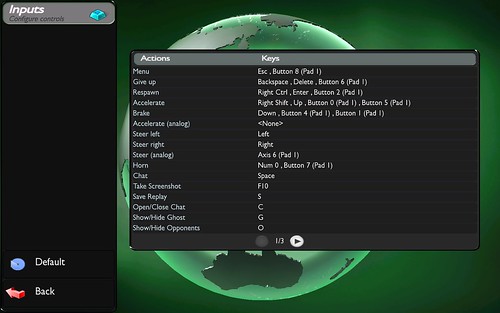
Because I had purchased this adaptor for the PS3, it had not occured to me before now to try plugging this USB adaptor into my PC. I tried this today and was pleased to see it automatically install as "HID-compliant game controller" on both XP and Vista. The next thing I did was fire up TrackMania Nations Forever on the hunch that it would be fun to play with a game controller. The controller was instantly recognised although all actions seemed to be assigned to the buttons on the left side of the controller. I prefer steering on the left and acceleration on the right, so I went into the Inputs configuration.

TMNF Inputs for game controller

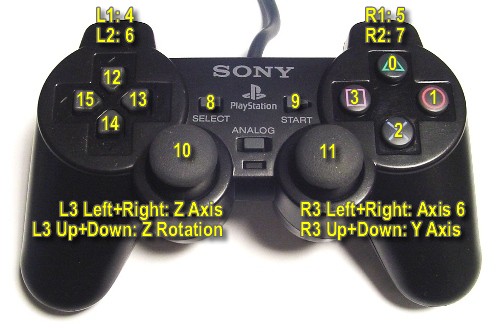
This is the point where things started to get a little confusing. I had no idea which button was Button 0 or 1 or 4, etc. So after a little but of experimentation I put together this handy reference image.
PS2 button numbers

I even tried this with an old PS1 controller and it also performed well (apart from the controller's buttons being a little sticky). The only difficulty I found (apart from mapping the buttons) was finding games that support game controller input, TrackMania is the only game I have installed that does. It is nice to play it with a controller though.

* Connecting a PS3 controller is a completely different process which is nicely addressed by davies lim and HowToGeek, although you map still find the the button map above to be useful.

Friday, 22 May 2009

How To: Use a PS3 with LCD monitor

This topic is a little step away from my usual content but the question has come up a couple of times lately and I thought I'd post a "How To" guide.

Many owners are content with using their TV for PlayStation 3 games and Blu-ray DVD. Some will be taking advantage of recent advances in HDTV and using an HDMI cable, while others are stuck with standard TV via an RCA AV cable or SCART (in Europe).

If you own a recently manufactured LCD monitor, then it's possible that you could take advantage of the PS3's HD capabilities without having to shell out for a new HDTV. Many LCD models feature a DVI input (digital) as well as SVGA (analog).


Converting HDMI -> DVI
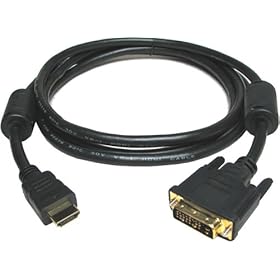
The PlayStation3 has two different audio/video outputs. The HDMI (High-Definition Multimedia Interface) port will transmit uncompressed digital data for video and audio. We can covert this to a monitor friendly format by using a HDMI->DVI cable. This cable drops the audio data but allows the digital video data to plug into a standard monitor DVI input. I'm using one of these cheap HDMI->DVI cables into a LG FLATRON W2042T and I'm more than happy with the result. The monitor also accepts SVGA which I use for my PC and switch between the two using the monitor's "Source" button.

What about audio?
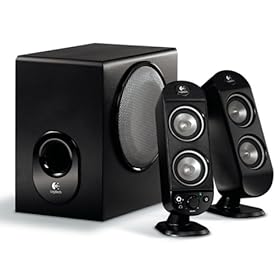
The HDMI->DVI conversion drops the audio data - since most monitors don't support audio, especially not digital audio, you're probably going to need something else to produce the sound. The PlayStation 3 simultaneously produces output on both HDMI and AV channels, so we can use the AV audio feed. In my set up I am plugging the Red and White RCA leads into a Logitech X-230 Multimedia Speaker System via an adaptor that came with the speakers (2x RCA female to stereo 3.5mm female). This is probably the best sounding system in the lower price bracket and features a handy headphone jack on the front of one speaker.

What about Xbox 360?
As I understand it, this technique will not work with the the XBox 360 as it only transmits data on either HDMI OR standard AV. Apparently you can plug your Xbox 360 into SVGA using this Xbox 360 VGA Component Audio Cable. I've not seen the output quality, but from what I've read it's quite acceptable, although some users experience ghosting on text.